
It Starts with the Department
Customized Support Plans for each computer
Every Rice computer that needs Windows 11 will have a customized support plan. Starting in Fall 2024, TSS will meet with division leaders, deans, and department administrators to evaluate each department's needs and create a transition plans that provides consistency and operational efficiency. There are several upgrade options, and the customized support plan will include the best-fit option for each computer in your department.
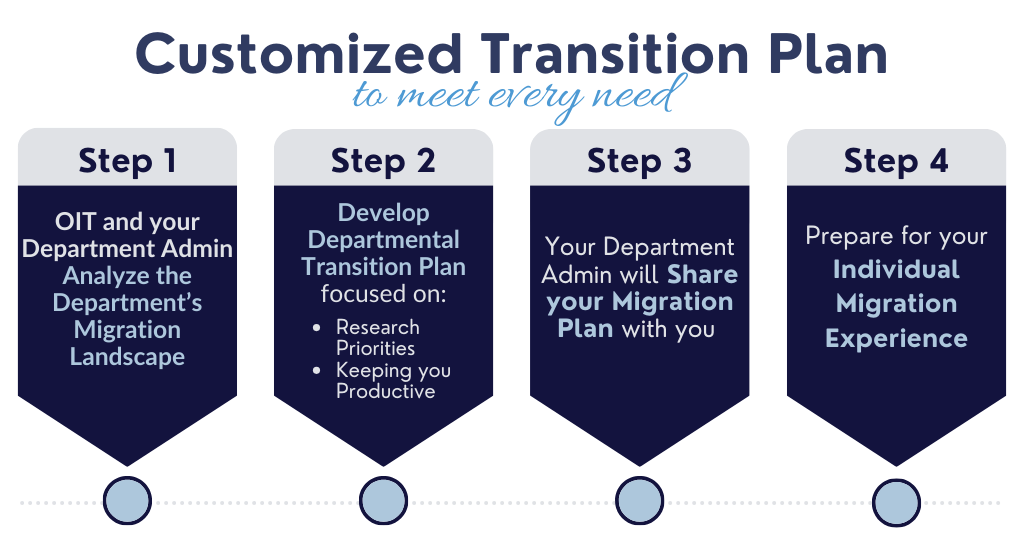
Customized Transition Plan to meet every need
- TSS and your Department Admin analyze the department's migration landscape
- Develop a Departmental Transition Plan focused on Research Priorities and keeping you productive
- Your Department Admin will share your migration plan with you
- Prepare for your Individual Migration Experience
Individual Preparation for Windows 11
Your department will email you details of the Windows 11 Migration process and your computer's recommended upgrade option(s). All of our migration experiences will be appropriately matched to your needs.
How to Prepare
- Get Started with Windows 11 - KB article with overview video and additional information
- Your Department Administrator will reach out with further information or submit an TSS Service Request to ask about the Windows 11 Migration
- Remember, support is available throughout this process via remote or in-person sessions. Visit the Contact Us page for support details.
Upgrade Options:
TSS Assisted Upgrade
Self-Service Upgrade
New Computers
Research Exceptions
Option 1: TSS- Assisted Upgrade
Who is a Good Candidate?
Computers with the following criteria:
- Not running the latest version of Windows 10
- Not communicating with TSS Management tools through your computer’s Software Center
Upgrade Details
This upgrade is a clean computer reimage that involves a complete rebuild of your Operating System (OS). This approach will clean files that are not needed and provide a new installation of the OS and other software such as Office 365, Adobe, and others you may have installed. Think of this option as buying a new phone/computer; it is a fresh start!
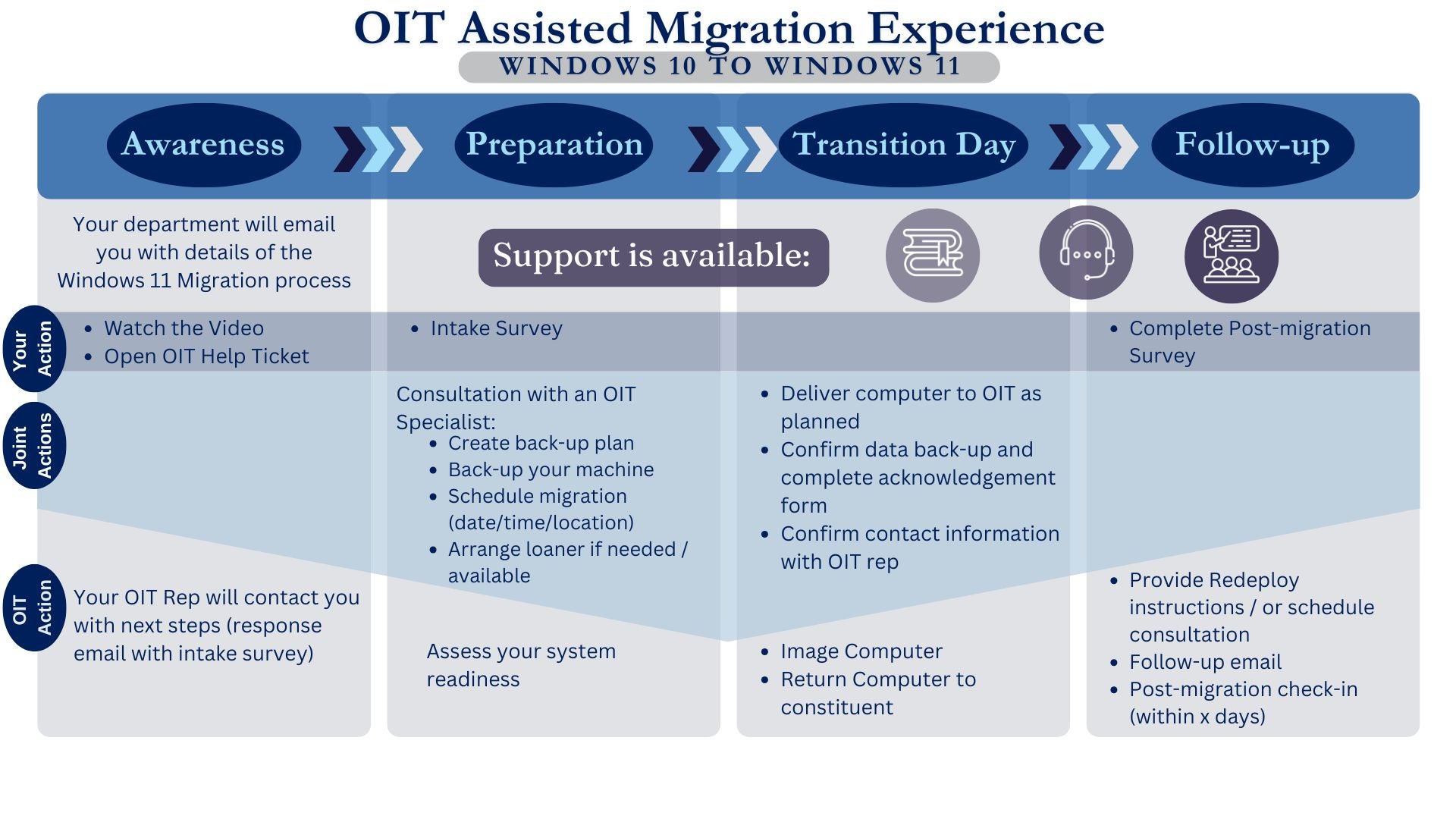
How to start?
Open an TSS Service Request when you are ready to migrate. An TSS Specialist will contact you with the next steps.
- Follow all of the steps above from the Prepare for Windows 11 section
- Open an TSS Service Request
- Complete the Intake Survey sent in response to your TSS Service Request. This helps the TSS specialist prepare for your migration.
- Consultation Meeting: Consult with the TSS specialist to personalize your migration experience and assess your system readiness:
- Create a backup plan that works for you.
- Schedule your migration (date, time, and specific location)
- Arrange a loaner laptop if needed
Things you can do to prepare for your consultation meeting:
- Review your backup and storage strategy and begin backing up the important documents saved to your computer.
- Ensure all software installed on your Windows 10 device is compatible with Windows 11, or create a list of software to ask about during the consultation
- Gather Software License Keys for reinstallation after upgrade
Transition Day
Deliver your computer to the assigned TSS specialist as scheduled during your Consultation meeting and confirm:
- All data is backed up (Complete Adobe Sign Acknowledgement Form)
- Your TSS Specialist has your contact information
The assigned TSS specialist will proceed with imaging your computer and will contact you when they have completed your migration to Windows 11.
Follow-up
After your migration is complete, the assigned TSS specialist will provide initial guidance on how to use your computer with Windows 11. A follow-up message will be sent with a Post-Migration Survey, and the assigned TSS specialist will check in with you after a few days to ensure your computer is running as expected. If you find that you would like additional coaching on how to use Windows 11, please submit a service request, and we will schedule a training time with you.
Option 2: Self-Service Upgrade
Who is a good candidate?
A good candidate for this upgrade option is currently running the latest version of Windows 10 (Codename 22H2) and is communicating with TSS management tools.
Upgrade details
A Self-Service upgrade is now available that will allow you to upgrade your computer wherever you are (i.e., at home, in an office, remote workers, etc.). This option will update your Operating System (OS) without cleaning the system or requiring reinstallation of other software such as Office 365, Adobe, etc. Think of this as an update to your smartphone OS.
We are coordinating with your department lead to schedule your team for an upgrade. If you would like to receive your upgrade now:
- Contact your department's administrative lead to see when you are scheduled for an upgrade
- Check your software center for the Windows 11 Update (for details, see the Installation Guide or Video)
- If you don't have the update, submit an TSS Service Request
Remember that support is available throughout this process via remote or in-person sessions. Visit the Contact Us page for support details.
Option 3: New Computer
If your computer is not eligible for Windows 11, wait for your Department Administrator to reach out to you about the process of procuring a new computer. Once replaced, please dispose of your computer by contacting TSS Support Services for assistance.
Option 4: Research Exceptions
TSS understands that some research computers run software that will not run on Windows 11 for a variety of reasons. The TSS Campus Services and Center for Research Computing teams will work with you to find the best solution for these computers to keep research moving AND Rice networks secure.